How to change your password inside the app?
You can change your account password at any time directly inside the Nevlin app.
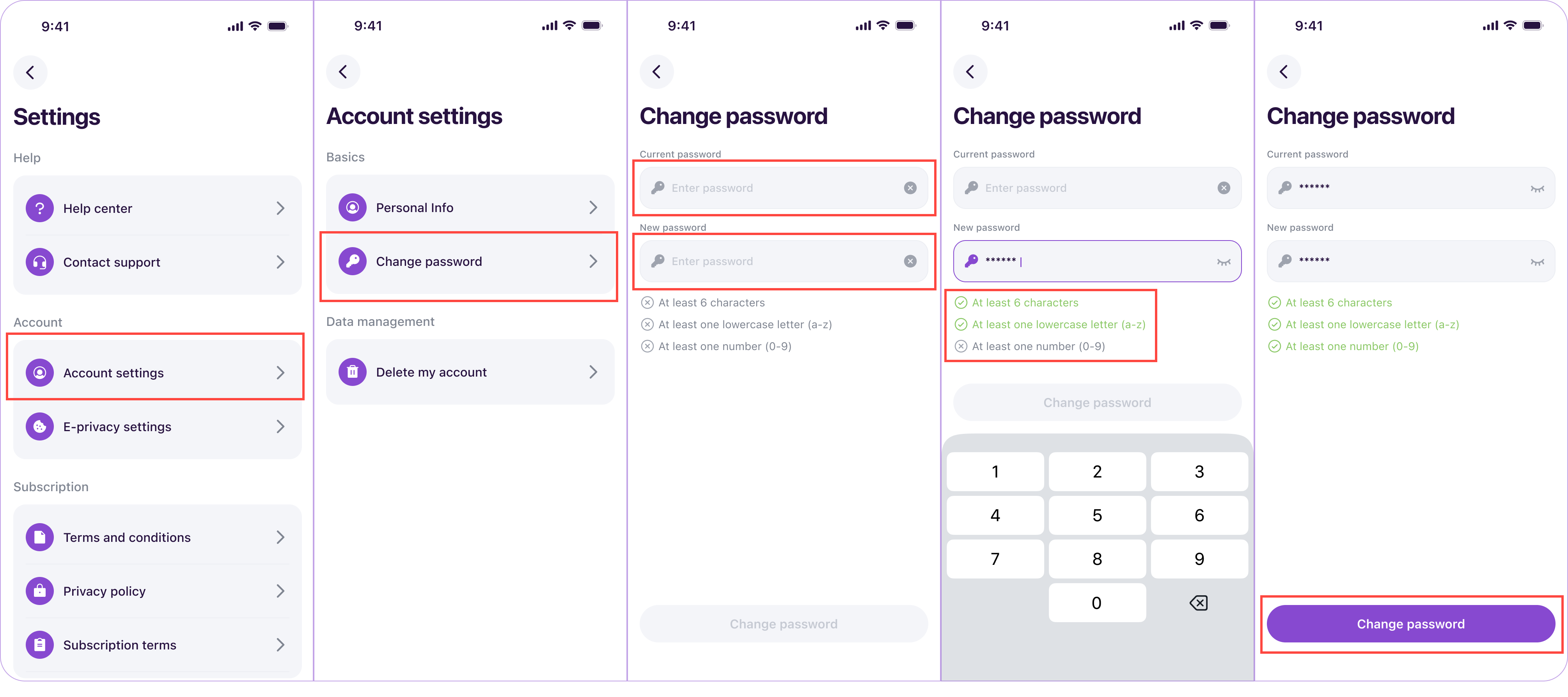
Steps to change your password:
- Open the Nevlin app.
- Go to the Profile section by tapping the Profile tab at the top of the screen.
- Tap the gear icon at the top of the page to open Settings.
- Select Account Settings.
- Tap Change password.
- Enter your current password in the first field.
- Enter your new password in the field below.
- Tap Change password to save your new password.
If you forgot your current password:
If you cannot remember your current password to log in or make changes, you can use our password recovery page to receive a 6-digit verification code by email and set a new password.
If you experience any issues updating your password, contact us at support@nevlin.com or by submitting a ticket to the Support Center.
Was this article helpful?